
Platform connexion
First connexion
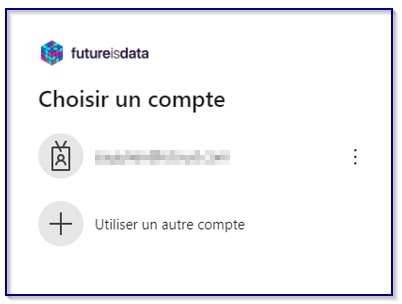
- Follow the link provided
- Select the account used
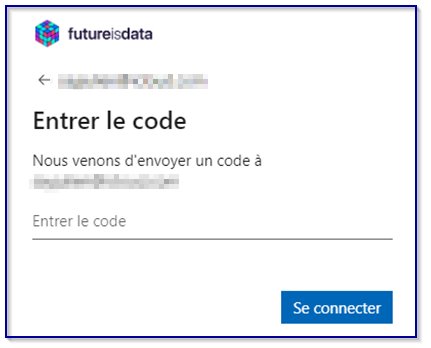
- Enter the passcode sent to your mailbox
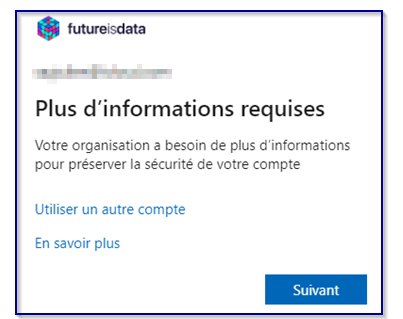
- Click “Suivant” / “Next” to connect
- Follow steps from pages 4 to 6 to register your multi-factor authentication app
Configure MFA
Click on the link in the email to start logging on to the platform.
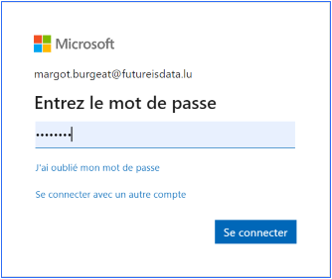
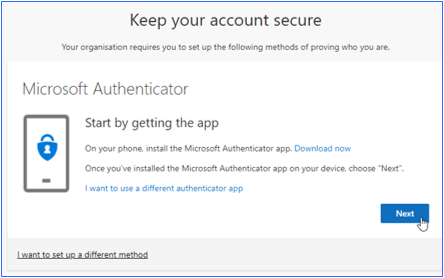
You need to download the “Microsoft Authenticator” application on your phone, then click on “Next”.
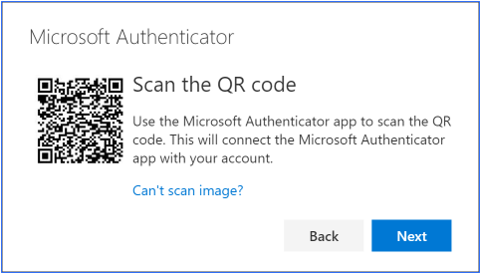
You will arrive at this screen, which you need to keep open during the next steps.
Note
more information on the Authenticator app can be found here : Common questions about the Microsoft Authenticator app – Microsoft Support
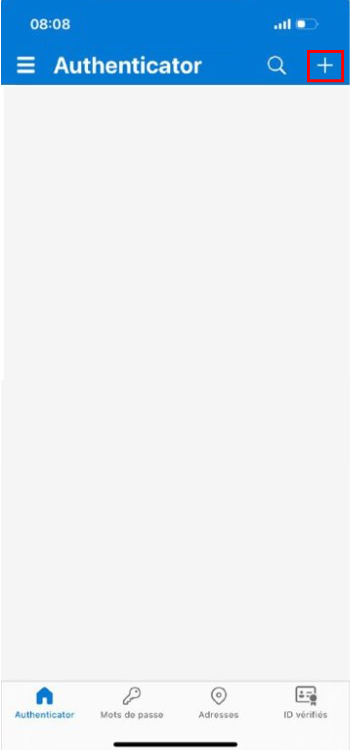
Once the application has been downloaded, tap on the “+”.
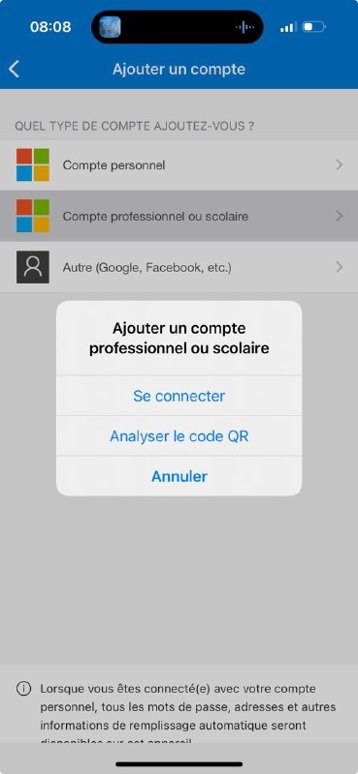
Select “Business or school account” then “Scan QR code”.
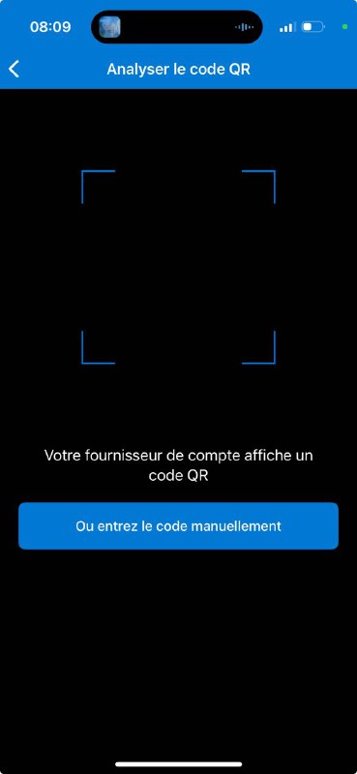
You can now scan the QR code shown on your computer (previous slide).
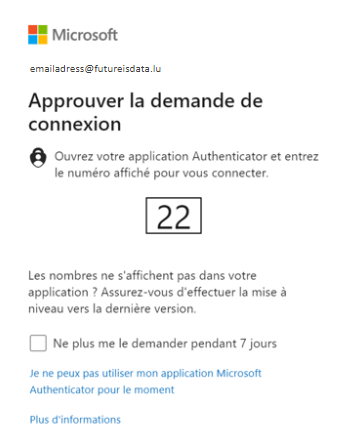
After scanning the QR code, your computer’s web page will show a number
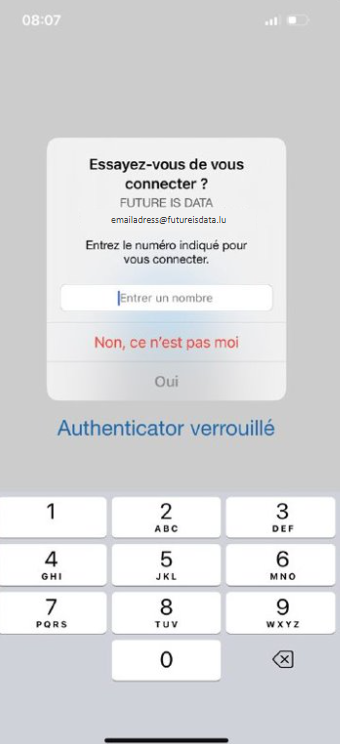
Type in the number to verify your identity
Congratulations ! You are now connected to the D360 platform